How to Integrate Your Shopify Store with Soundwise
 Updated
by Pradeep Thapa
Updated
by Pradeep Thapa
With the Soundwise Shopify app, you can sell your Soundcasts directly through your Shopify store and automatically give customers access to the Soundcast they purchase.
How the Integration Works
The integration connects each Shopify product to a published Soundcast in Soundwise using the Soundcast ID as the Shopify product SKU.
Customer purchases a Shopify product → Soundwise identifies the Soundcast using the product SKU → Customer receives access to the Soundcast in Soundwise
Before You Start
· A Soundwise Publisher account
· A Shopify store
· At least one published Soundcast
· Access to your Shopify Admin
· Access to the email address associated with your Soundwise Publisher account
1. Install the Soundwise Shopify App
The Soundwise Shopify app is free to install.
Shopify App Store: https://apps.shopify.com/soundwise2
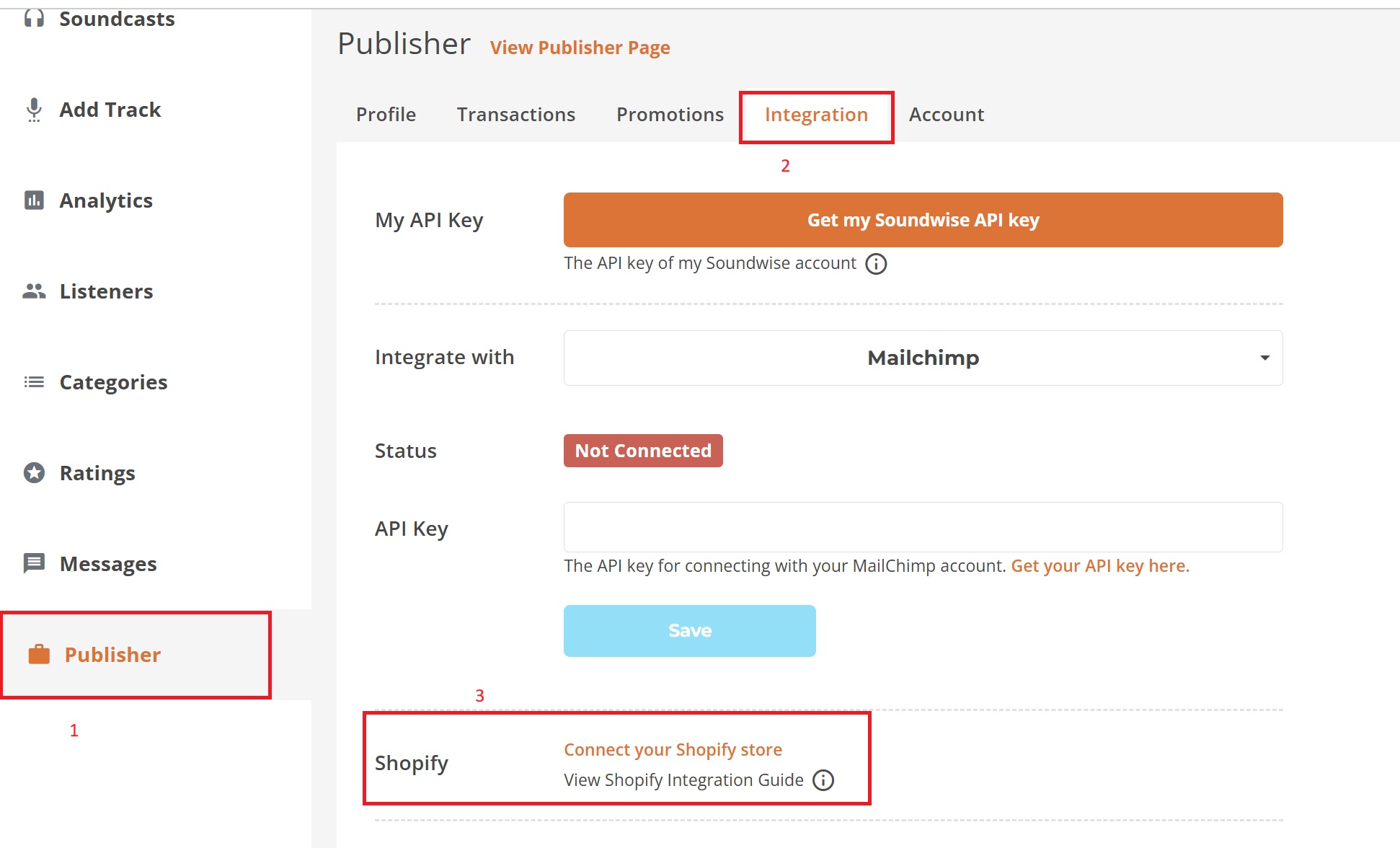
You can also start the integration from your Soundwise Publisher Dashboard. Log in to your Soundwise account.
1. Open the Publisher Dashboard.
2. Go to Publisher → Integration.
3. Find the Shopify integration section.
4. Click the Shopify installation link/button provided there.
5. Follow the Shopify authorization and installation steps.
Important: Always start the integration from Publisher → Integration in your Soundwise dashboard. This ensures that you are connecting the correct Soundwise Publisher account to your Shopify store.
2. Sign In to the Soundwise Publisher App
After installing the app, open Soundwise from your Shopify Admin and sign in using your Soundwise Publisher account. The app will display the published Soundcasts available in your Publisher account, including their Soundcast IDs.
Soundcast IDs and Shopify SKUs
Soundcast ID (SKU) | Soundcast Title |
1778239208573s | Example Soundcast |
Important: Only published Soundcasts are available for the Shopify integration. Keep the Soundcast ID available because you will use it as the SKU of the corresponding Shopify product.
3. Configure Your Shopify Store
Before selling products, configure all required payment settings in your Shopify store. Customers complete purchases through Shopify using the payment methods you have enabled
4. Create a Shopify Product for a Soundcast
1. Go to Products in your Shopify Admin.
2. Click Add product.
3. Enter the product title.
4. Add the product description.
5. Set the price.
6. Enter the Soundcast ID in the SKU field.
7. Save the product.
Example Product
Shopify field | What to enter |
Product title | Example Soundcast |
Description | Your Soundcast description |
Price | Your selling price |
SKU | 1778239208573s |
4. Choose the Type of Access
The SKU can specify lifetime/one-time access or time-limited access.
Lifetime / One-Time Access
For lifetime access, use the Soundcast ID directly as the SKU:
1778239208573s
You can also use the supported one-time format:
1778239208573s_onetime
Time-Limited Access / Rental
Use the following format for time-limited access:
soundcastId_[billingCycle]_[numberOfUnits]_[unitOfDuration]
The supported billing cycle for time-limited access is:
rental
Examples:
Access type | Shopify SKU |
7-day rental | 1778239208573s_rental_7_days |
1-month rental | 1778239208573s_rental_1_month |
3-month rental | 1778239208573s_rental_3_months |
1-year rental | 1778239208573s_rental_1_year |
Important: Use the supported SKU formats shown above. The Soundcast ID must be at the beginning of the SKU.
5. Test the Integration
We recommend testing the integration before making your products available to customers. A simple way to test is to create a temporary Shopify product with a $0 price.
1. Create a Shopify product for one of your published Soundcasts.
2. Use the Soundcast title and description.
3. Enter the correct Soundcast ID as the SKU.
4. Set the price to $0.
5. Make sure the product is available on your Shopify storefront.
6. Complete a Test Purchase
Open your Shopify storefront and purchase the test product. For testing, use the email address associated with your Soundwise account.
1. Open your Shopify storefront.
2. Select the test product.
3. Complete checkout.
4. Use the email address associated with your Soundwise account.
7. Verify the Soundcast in Soundwise
After completing the test purchase:
1. Open the Soundwise web application: https://app.mysoundwise.com/
2. Sign in using the email address used for the test purchase.
3. Go to My Library.
4. Look for the Soundcast you purchased through Shopify.
Successful test: If the Soundcast appears in My Library, the Shopify integration is working correctly.
8. Sell Multiple Soundcasts
You can sell multiple Soundcasts through the same Shopify store. Create a corresponding Shopify product for each Soundcast and use that Soundcast's ID as the product SKU.
9. Troubleshooting
The Soundcast is not appearing in My Library.
Check the Shopify SKU and make sure it exactly matches the Soundcast ID or supported rental format.
The Soundcast is not published.
Make sure the Soundcast is published in your Soundwise Publisher account.
The wrong Soundcast ID was used.
Compare the Soundcast ID shown in the Soundwise Shopify app with the Shopify product SKU.
The Shopify order was not completed.
Confirm that the order was successfully completed in Shopify.
The test used a different email address.
For testing, use the email address associated with your Soundwise account and then check My Library.
If the issue continues, contact Soundwise Support and provide the Shopify product name, Shopify order information, product SKU, Soundcast ID, and email address used for the test.
You're ready to sell your Soundcasts through Shopify.